
Photo to pixel art
A mountain reflection. Simplify a landscape into a small, colorful picture.
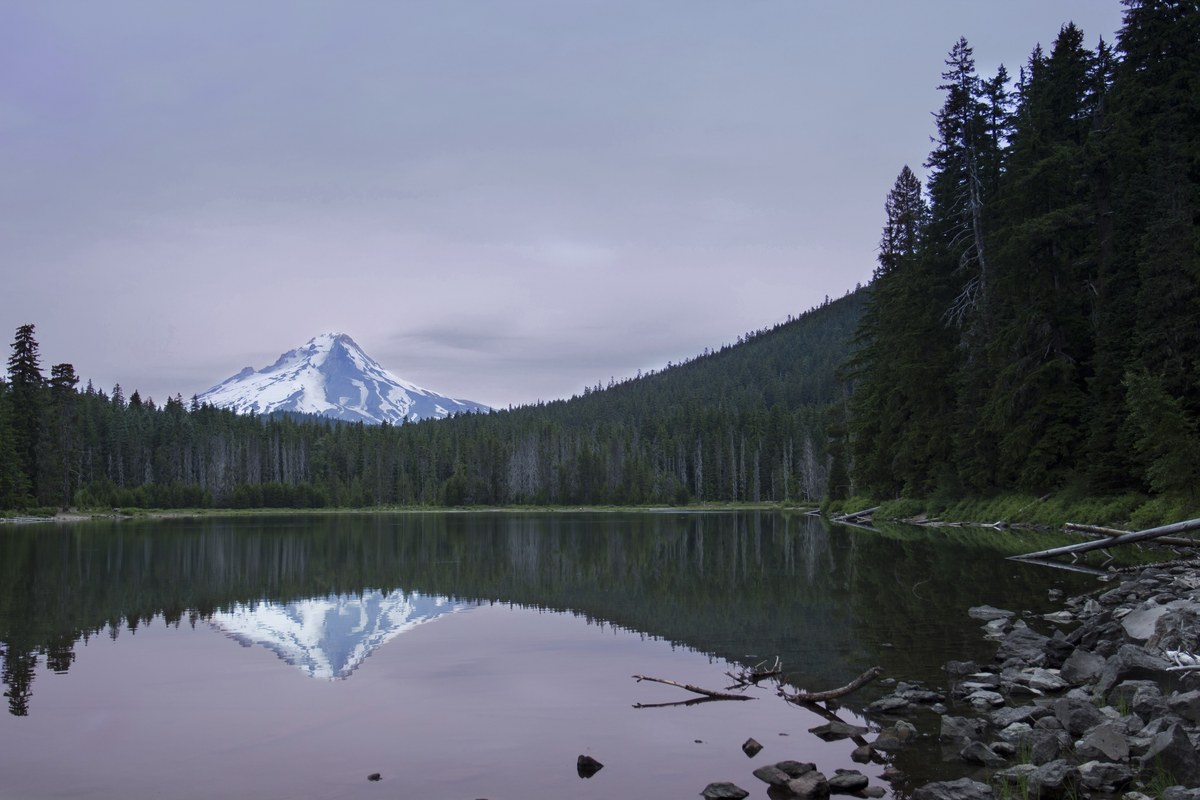
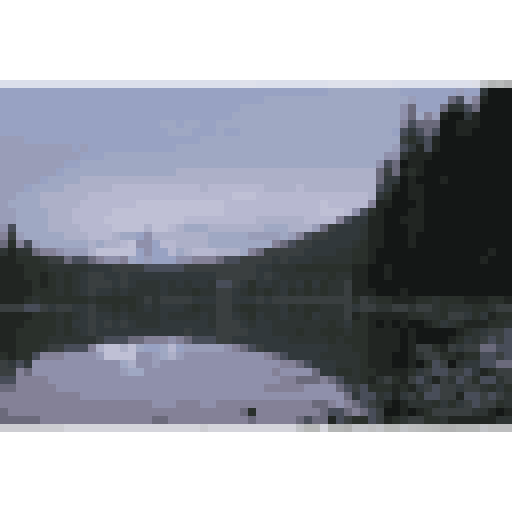
64 × 64 · Fit · From image · 16 colors
Try these settingsPhoto by Bonnie Moreland · CC0
Turn photos into pixel art. Find your colors, make every pixel count, and download a crisp PNG.
Free · No signup · Images stay in your browser
Drop an image here
JPG, PNG or WebP · Up to 20 MiB · Up to 25 megapixels
Enable JavaScript to choose an image and use the converter. Your image is processed in your browser.
These examples use the same image-to-pixel-art process as your uploads. Try a sample in the editor and make it your own.
A mountain reflection. Simplify a landscape into a small, colorful picture.
64 × 64 · Fit · From image · 16 colors
Try these settingsPhoto by Bonnie Moreland · CC0
A quiet afternoon sail. Give an illustration the classic PICO-8 colors.
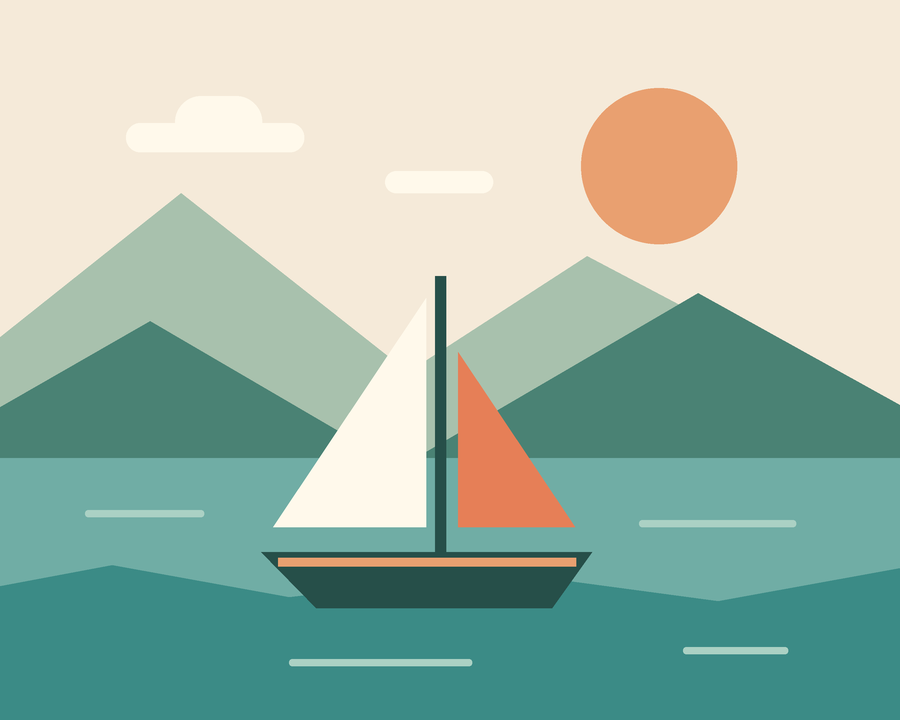
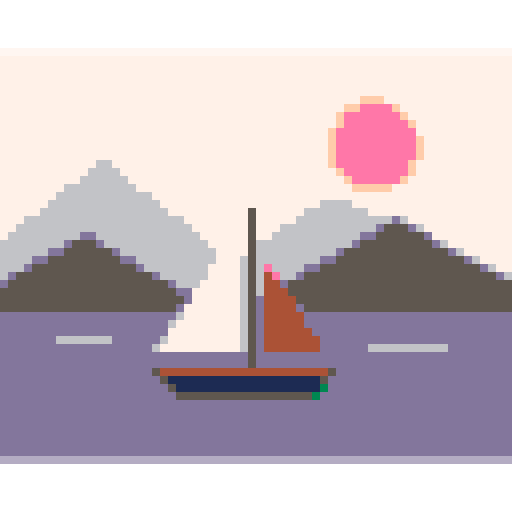
64 × 64 · Fit · PICO-8 palette
Try these settingsOriginal artwork created for Image to Pixel Art
A sprout with room to grow. Keep a transparent icon crisp at any export scale.

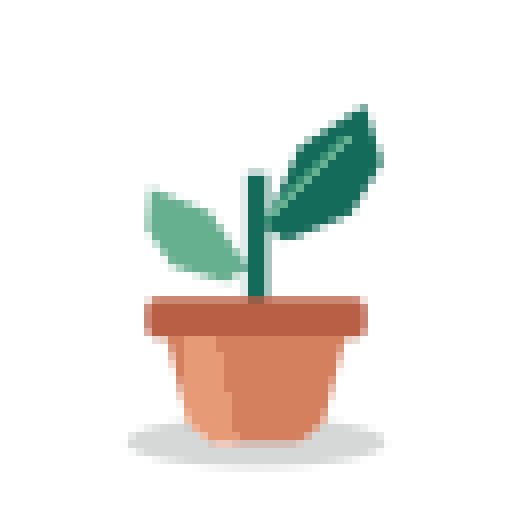
64 × 64 · Fit · From image · 8 colors
Try these settingsOriginal artwork created for Image to Pixel Art
Upload a JPG, PNG or WebP, drop one into the editor, or try a sample. Your file stays in your browser.
Choose a 32, 64 or 128 pixel square grid. Keep the whole picture with Fit, or adjust a square Crop. Explore extracted colors and retro palettes.
Compare the original and pixel art, then choose an export scale. A 64 × 64 grid at 8× becomes a sharp 512 × 512 PNG.
Compare real results, learn which settings matter, and try them in the editor.
Compare pixel grids and color limits on the same photo.
Read the guide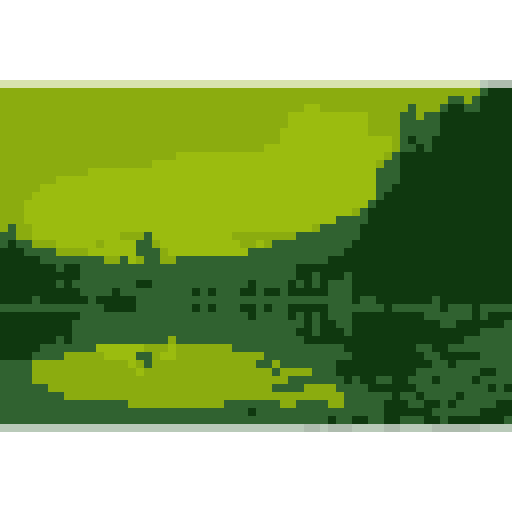
Try four retro greens, with and without dithering.
Read the guideKeep alpha intact and choose the right download size.
Read the guideChoose an image, select a pixel grid and palette, and preview the result. Adjust Fit or Crop and toggle dithering if you want a different texture. When the current result is ready, choose Download PNG.
It is the actual pixel grid: 64 columns by 64 rows. The basic result is exactly 64 × 64 pixels. The same rule applies to the 32 × 32 and 128 × 128 options, including very small source images.
The grid controls the amount of detail. The export scale makes each grid pixel larger without smoothing it. At 8×, a 64 × 64 grid downloads as a 512 × 512 PNG. Export scales are 1×, 2×, 4× and 8×.
Upload one JPG/JPEG, PNG or WebP at a time, up to 20 MiB and 25 million decoded pixels. GIF, SVG and video are not supported. A damaged or unsupported file shows an error so you can choose another image.
Fit keeps the original proportions and centers the complete image inside the square grid, with transparent padding where needed. Crop lets you move and zoom a square frame. You can reset the crop at any time.
Existing transparent and semitransparent areas are preserved. Fit also adds transparent padding around images that are not square. The checkerboard is only a preview aid and is not included in your PNG. This tool does not automatically remove a photo background.
No. Your selected image and its pixels are processed locally in your browser and are not uploaded by the converter. The site uses Google Analytics to understand visits and usage. See the privacy page for details about analytics and normal website requests.
From image extracts a palette from your picture, with a limit of 8, 16, 32 or 64 colors. Game Boy-inspired uses four retro greens. PICO-8 uses its standard 16-color palette. The two retro choices control colors; they do not simulate complete game hardware.
Dithering arranges the chosen palette colors in a repeating pattern to suggest intermediate shades. It can help gradients and shadows, but it can also make a simple image busier. It starts off, so you can compare both looks.
Choose Custom palette to enter 2–64 distinct HEX colors, add colors with the picker, or import a .hex, .txt or GIMP .gpl palette file up to 64 KiB. Save a name to apply the colors and reuse the palette. Up to 20 palettes are saved in this browser's local storage; your image pixels are never saved there. If storage is unavailable, you can still apply colors for the current session.