
How to convert a photo to pixel art
Start with a clear subject, then decide which details are worth keeping.
A photo contains far more detail than a small pixel grid can hold. Mountains, silhouettes and simple objects tend to stay recognizable when reduced. Tiny text, distant faces and busy foliage need a closer crop or a larger grid. This guide uses one landscape to show what changes when you adjust the grid and the number of colors.
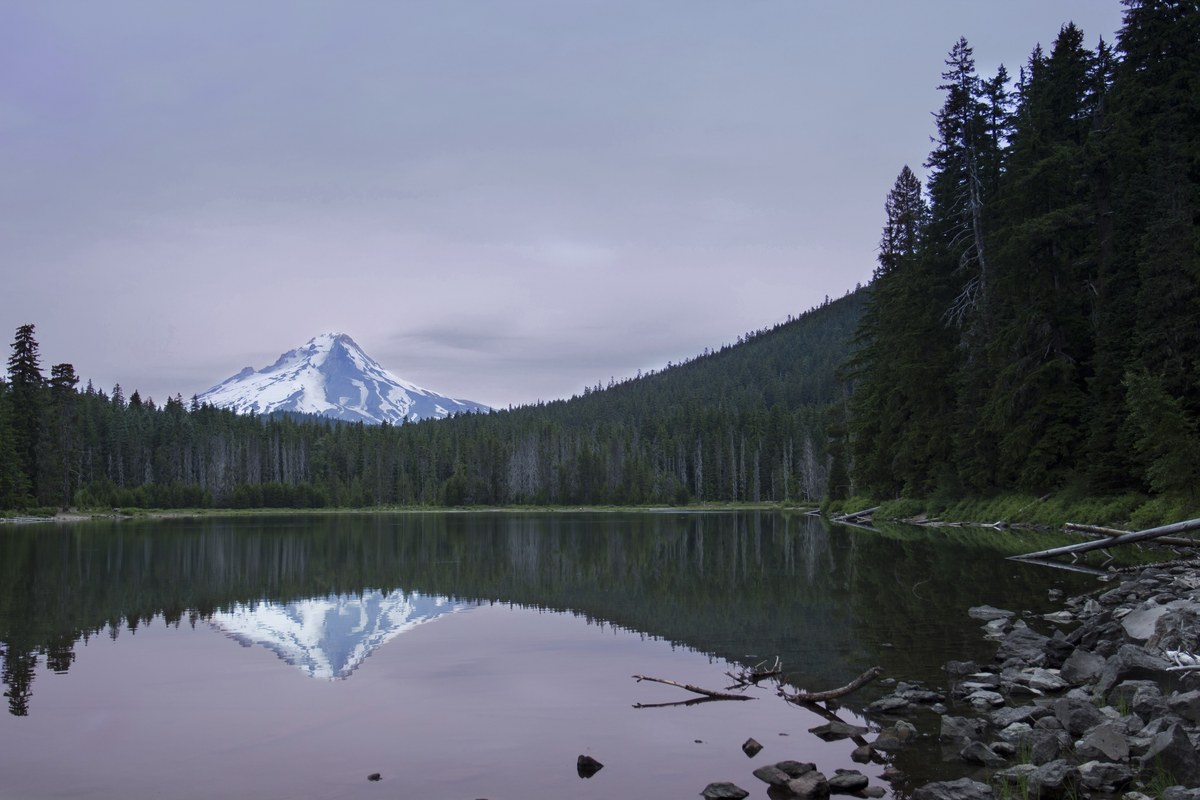
Photo: Lake Mountain Landscape by Bonnie Moreland, CC0. All results below are generated by this converter.
1. Choose your photo and framing
Open a JPG, PNG or WebP in the converter. Use Fit to keep the entire picture and its proportions. A wide photo has transparent padding above and below because the output grid is square. Choose Crop if you want the subject to fill the square, then drag the preview and adjust the zoom.
Start with an image where the subject takes up a useful part of the frame. Cropping a small object out of a distant scene can make it easier to recognize, but it cannot restore detail that was absent from the source.
2. Compare three pixel grids
The grid is the actual pixel resolution, not the size of the enlarged download. These examples also change the color limit to show useful starting points. To isolate one variable, open an example and change only the grid or only the color limit.
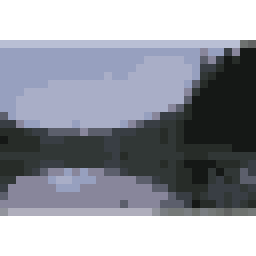
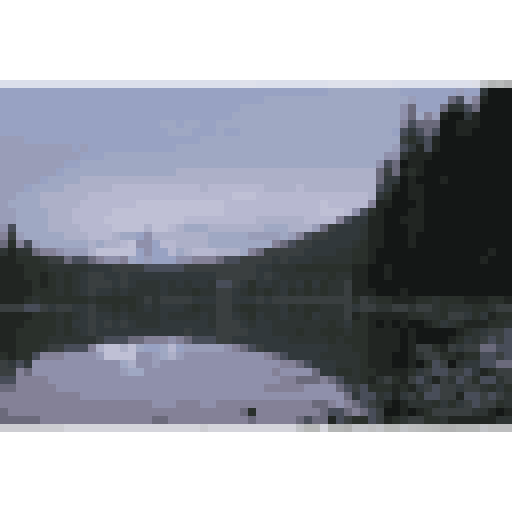
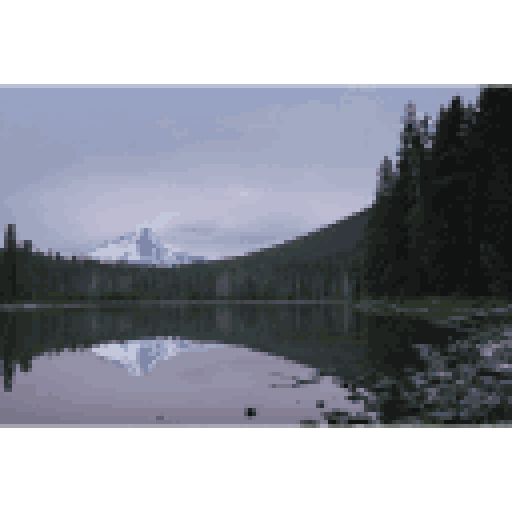
A 32 × 32 grid reduces small details to a few blocks. At 64 × 64, the mountain shapes and trees have more room. A 128 × 128 grid retains more of the photograph and may feel less abstract. None is universally best: choose the amount of detail that works at the size where people will view the picture.
3. Find the colors that matter
From image extracts a palette from the source with a maximum of 8, 16, 32 or 64 colors. Fewer colors can unify a scene, while a larger limit gives gradients and small features more shades. The actual number may be lower for simple or transparent images.
Try 16 colors first. If the sky becomes too banded, compare 32 colors or turn on dithering. Dithering arranges the selected colors in a repeating pattern to suggest intermediate tones; it can also make leaves and small details busier. Compare the results before deciding.
4. Download without smoothing the pixels
Export scale enlarges each grid pixel into an exact block. At 8×, a 64 × 64 grid becomes a 512 × 512 PNG. A 32 × 32 grid at 8× is 256 × 256; the fine example uses 4× to make a 512 × 512 PNG. Increasing export scale makes the picture larger without adding detail.
Check the Download size, then choose Download PNG. Keep the original photo if you may want a different crop later. Conversion does not replace the rights or license attached to the source image.
Try the 64 × 64 photo example