
How to make Game Boy-style pixel art
Four greens can give an everyday photo a familiar handheld mood.
This converter's Game Boy-inspired palette maps an image to four fixed greens. It is a color treatment rather than a complete hardware simulation: the selectable grids are square, and there is no LCD filter or emulation of a particular game system.
1. Start with a readable shape
Choose a photo or illustration with a strong silhouette and distinct light and dark areas. With only four colors, subtle features may blend together. Use Fit to keep the full composition, or use Crop to give the main subject more space.
The mountain sample below uses a 64 × 64 grid, Fit framing and an 8× export. Both results share the same source and settings except for dithering.
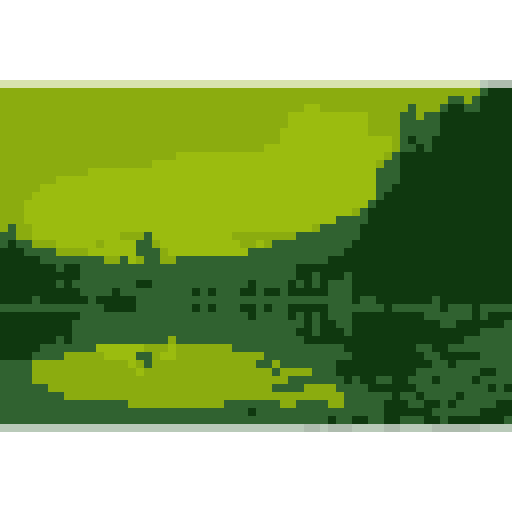
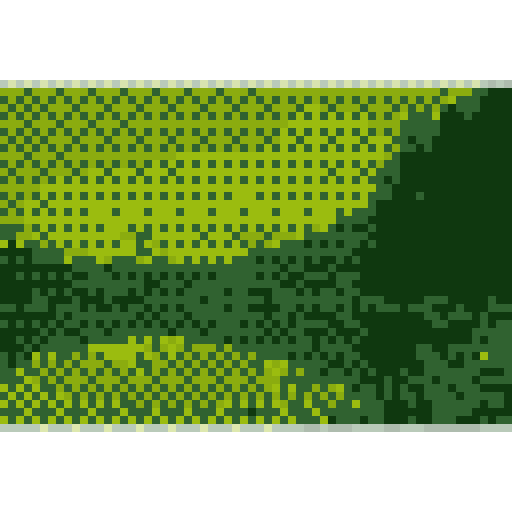
Photo: Lake Mountain Landscape by Bonnie Moreland, CC0. All results below are generated by this converter.
2. Select the four-green palette
Choose Game Boy-inspired under Color palette. The color-limit buttons are unavailable because this palette always uses the same four RGB colors:
#0F380F— darkest#306230— dark green#8BAC0F— light green#9BBC0F— lightest
Original hues become one of these greens. A red object and a blue object can therefore become similar shades; a recognizable outline matters more than preserving the source's color identity.
3. Decide whether to use dithering
With dithering off, neighboring source colors often map to the same green, producing flatter regions. With dithering on, a repeating 4 × 4 pattern mixes palette colors to suggest additional shades. The exported PNG still uses only the four greens wherever pixels are visible.
Dithering can help a sky or a shadow transition, but the pattern may compete with small features. Use the two examples above to compare it directly. If the result feels busy, turn dithering off or try a tighter crop before increasing the grid size.
4. Export at a useful size
The example's 64 × 64 grid at 8× exports a 512 × 512 PNG. Select 1× if you need the actual 64 × 64 asset, or an integer enlargement for sharing. Existing transparency remains transparent; the palette does not fill the background.
For a different retro look, compare PICO-8's 16 colors. To use your own greens, choose Custom palette and save a named set of HEX colors. A custom palette changes the selected colors without simulating different hardware.
Try the four-green example