PIXEL ART
 ORIGINAL
COZY WORLDS
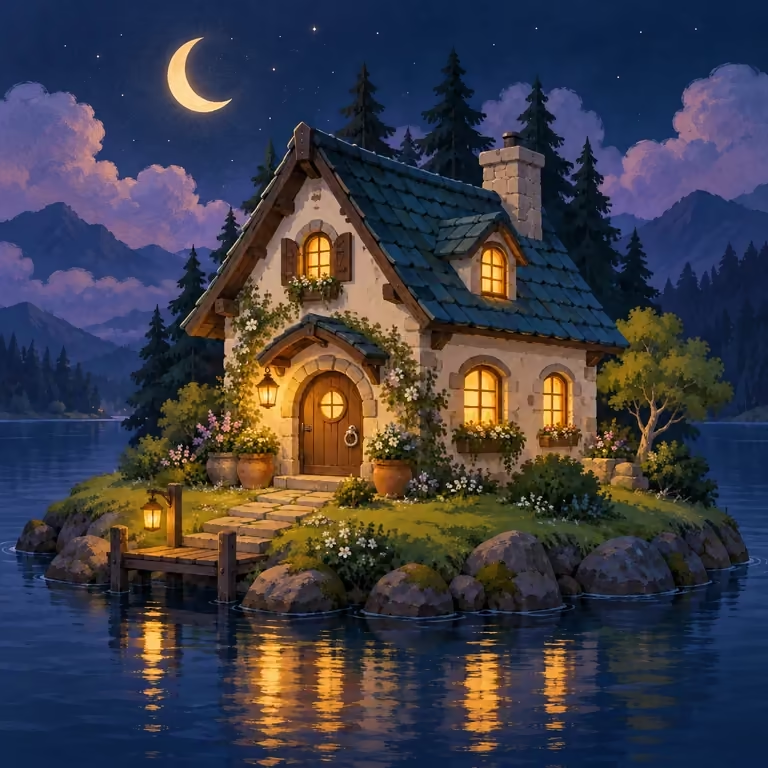
Moonlit cottage
A little light in a world of your own. Turn a painted scene into a tiny game world.
64 × 64 · 32 colors · From image
Make it yoursTHE PIXEL WORKSHOP
Turn photos into pixel art. Find your colors, make every pixel count, and download a crisp PNG.
Free · No signup · Images stay in your browser
Choose an image to begin.
FIND YOUR KIND OF PIXEL ART
Your pet. Your favorite coffee. A place you love. Find a little piece of you, then make it pixel.
22 examples · All examples
PIXEL ART
ORIGINAL
COZY WORLDS
A little light in a world of your own. Turn a painted scene into a tiny game world.
64 × 64 · 32 colors · From image
Make it yours PIXEL ART
 ORIGINAL
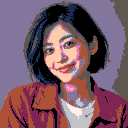
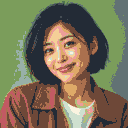
YOUR NEXT AVATAR
A favorite portrait becomes a profile picture with personality. Keep the face you love, one pixel at a time.
128 × 128 · 32 colors · From image
Make it yours PIXEL ART
 ORIGINAL
SOMETHING SWEET
For bakers, birthday people and anyone who orders dessert first. Save a sweet moment in a different way.
64 × 64 · 32 colors · From image
Make it yours PIXEL ART
 ORIGINAL
CAT PEOPLE
Those ears. That expression. Turn the boss of your home into a tiny portrait you can take anywhere.
64 × 64 · 32 colors · From image
Make it yours PIXEL ART
 ORIGINAL
TRAVEL MEMORIES
Cherry blossoms and a quiet lane. Turn a place you dream of visiting into a little pixel postcard.
128 × 128 · 32 colors · From image
Make it yours PIXEL ART
 ORIGINAL
JOURNAL STICKERS
A camera for your travel diary, scrapbook or mood board. A little reminder to keep making memories.
64 × 64 · 32 colors · Transparent PNG
Make it yours PIXEL ART
 ORIGINAL
PHOTO TO PIXEL
Make a familiar face into your next favorite avatar. Try a photo with a strong silhouette.
64 × 64 · 32 colors · From image
Make it yours PIXEL ART
 ORIGINAL
CAFE FAVORITES
A quiet little coffee break, made pixel-sized. Turn your favorite drink into a journal sticker.
64 × 64 · 32 colors · Transparent PNG
Make it yours PIXEL ART
 ORIGINAL
LITTLE LOVE NOTES
A shared laugh, a warm evening, a memory worth keeping. Make a pixel keepsake for someone you love.
128 × 128 · 32 colors · From image
Make it yours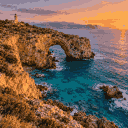 PIXEL ART
 ORIGINAL
POSTCARD PIXELS
Keep a favorite view in a different kind of frame. More pixels hold the coastline and sunset.
128 × 128 · 32 colors · From image
Make it yours PIXEL ART
 ORIGINAL
FLOWERS FOR SOMEONE
Keep a bouquet blooming long after the day. A tiny floral gift for messages, journals and cards.
64 × 64 · 32 colors · Transparent PNG
Make it yours PIXEL ART
 ORIGINAL
COMFORT FOOD
Noodles, a golden egg and your favorite bowl. Make a tiny food sticker that feels like a good evening.
64 × 64 · 32 colors · Transparent PNG
Make it yours PIXEL ART
 ORIGINAL
PLANT PEOPLE
Bring your favorite plant to a smaller windowsill. Make a leafy sticker with a transparent background.
64 × 64 · 32 colors · Transparent PNG
Make it yours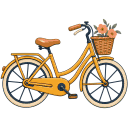 PIXEL ART
 ORIGINAL
EVERYDAY ADVENTURES
A favorite ride, a basket of flowers and nowhere to rush. A little illustration for your next adventure.
128 × 128 · 32 colors · Transparent PNG
Make it yours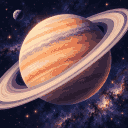 PIXEL ART
 ORIGINAL
SPACE DAYDREAMS
A peach-colored planet in a lavender sky. Make a small window into a very big universe.
128 × 128 · 32 colors · From image
Make it yours PIXEL ART
 ORIGINAL
BAKERY LOVE
Warm flaky layers, without a single crumb. A bite-sized illustration for your cafe notes and stickers.
64 × 64 · 32 colors · Transparent PNG
Make it yours PIXEL ART
 ORIGINAL
WILD AT HEART
Rust-red fur and a curious face. Bring a favorite animal into your own little pixel collection.
64 × 64 · 32 colors · From image
Make it yours PIXEL ART
 ORIGINAL
INVENTORY ICONS
A little magic for your inventory. Keep the glass, the glow and the transparent background.
64 × 64 · 32 colors · Transparent PNG
Make it yours PIXEL ART
 ORIGINAL
GAME ASSETS
From an illustrated chest to a crisp little reward, ready to refine pixel by pixel.
64 × 64 · 32 colors · Transparent PNG
Make it yours PIXEL ART
 ORIGINAL
TINY COLLECTIBLES
An everyday forest find becomes a charming collectible. Small canvas, plenty of character.
32 × 32 · 16 colors · Transparent PNG
Make it yours PIXEL ART
 ORIGINAL
CHARACTER SPRITES
A pocket-sized robot with a personality of its own. Refine the eyes, scarf and little metal details.
64 × 64 · 32 colors · Transparent PNG
Make it yours PIXEL ART
 ORIGINAL
STYLE REFERENCES
Warm amber light, antique brass and a little forest magic. A reference for your next fantasy asset.
64 × 64 · 32 colors · Transparent PNG
Make it yoursSource images created with AI for this workshop. Every pixel preview is made with this converter and opens with the settings shown.
KEEP THE IDEAS GOING
Upload a JPG, PNG or WebP, drop one into the editor, or try a sample. Your file stays in your browser.
Choose a 16, 32, 64 or 128 pixel square grid, or set a custom native width and height. Keep the whole picture with Fit, or adjust a Crop with the output aspect ratio. Explore extracted colors and retro palettes.
Compare the original and pixel art, then choose an export scale. A 64 × 64 grid at 8× becomes a sharp 512 × 512 PNG.
Compare real results, learn which settings matter, and try them in the editor.

Compare pixel grids and color limits on the same photo.
Read the guide
Try four retro greens, with and without dithering.
Read the guide
Keep alpha intact and choose the right download size.
Read the guide
Native sizes, shared palettes, transparent edges and a reusable set.
Read the guideChoose an image, select a pixel grid and palette, and preview the result. Adjust Fit or Crop and toggle dithering if you want a different texture. When the current result is ready, choose Download PNG.
It is the actual pixel grid: 64 columns by 64 rows. The basic result is exactly 64 × 64 pixels. The same rule applies to the 16 × 16, 32 × 32 and 128 × 128 options, and custom native widths and heights from 1 to 256, including very small source images.
The grid controls the amount of detail. The export scale makes each grid pixel larger without smoothing it. At 8×, a 64 × 64 grid downloads as a 512 × 512 PNG. Export scales are 1×, 2×, 4× and 8×.
Upload one JPG/JPEG, PNG or WebP at a time, up to 20 MiB and 25 million decoded pixels. GIF, SVG and video are not supported. A damaged or unsupported file shows an error so you can choose another image.
Fit keeps the original proportions and centers the complete image inside the native grid, with transparent padding where needed. Crop lets you move and zoom a frame matching the native size. You can reset the crop at any time.
Existing transparent and semitransparent areas are preserved. Fit also adds transparent padding around images that are not square. The checkerboard is only a preview aid and is not included in your PNG. This tool does not automatically remove a photo background.
No. Your selected image and its pixels are processed locally in your browser and are not uploaded by the converter. The site uses Google Analytics to understand visits and usage. See the privacy page for details about analytics and normal website requests.
From image extracts a palette from your picture, with a limit of 8, 16, 32 or 64 colors. Game Boy-inspired uses four retro greens. PICO-8 uses its standard 16-color palette. The two retro choices control colors; they do not simulate complete game hardware.
Dithering arranges the chosen palette colors in a repeating pattern to suggest intermediate shades. It can help gradients and shadows, but it can also make a simple image busier. It starts off, so you can compare both looks.
Choose Custom palette to enter 1–64 distinct HEX colors, add colors with the picker, or import a .hex, .txt or GIMP .gpl palette file up to 64 KiB. Save a name to apply the colors and reuse the palette. Up to 20 palettes are saved in this browser's local storage; your image pixels are never saved there. If storage is unavailable, you can still apply colors for the current session.